
A webinar funnel helps people find your online class, sign up, know how to attend, and hear from you afterward.
A webinar can be an online class, a workshop, a live training, or a Zoom call. Whatever you call it, your attendees need a clear invitation and an easy way to find you when it’s time to start.
My first webinar funnel was built to sell a coaching course. I paid about $5,000 for help building it, and I still had plenty of work to do.
I ran the webinar live about five times, then made it available as a recording. I sold three courses. After the time and money I had put in, three sales felt like failure, so I walked away.
Looking back, those three customers could have taught me a lot. But I was exhausted by the time I got there.
I want this to be simpler for you. Here are the steps I would use to get people from your invitation to your live class. I’ll also show you how to set each part up in Pagewheel.
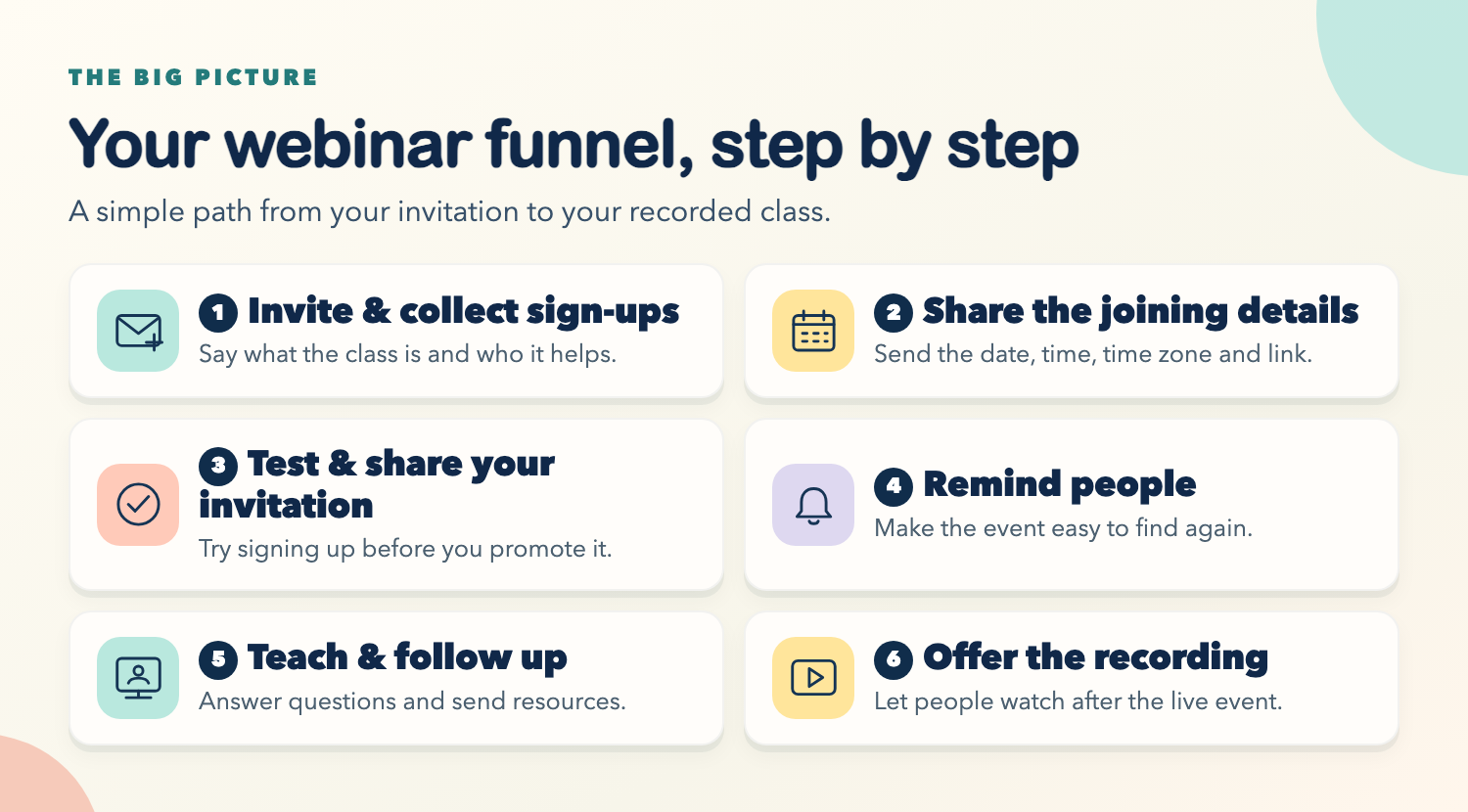
1. Give People a Clear Invitation and a Way to Sign Up
Your invitation needs to help someone decide whether this class is for them. Tell them what you’re teaching, who it will help, what they’ll learn, and whether it’s free or paid.
Include the date, time, and time zone, along with a clear button or link to register. Collect an email address so you can send the joining details and reminders.
Before you finish the page, schedule your event in Zoom or another meeting platform. You’ll need the attendee joining link for the next step.
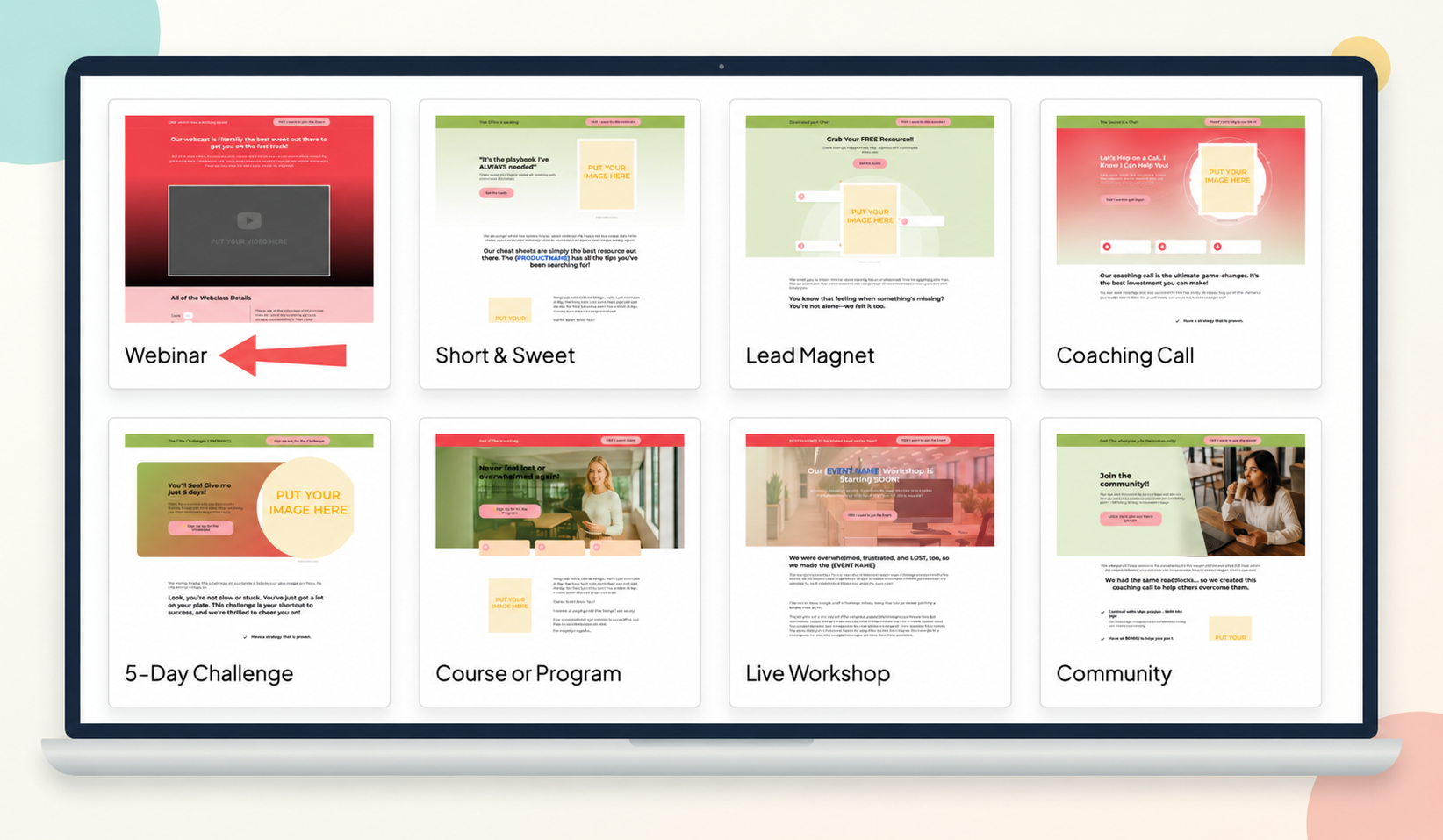
In Pagewheel: Open Pagewheel and choose Webinar from the page templates.
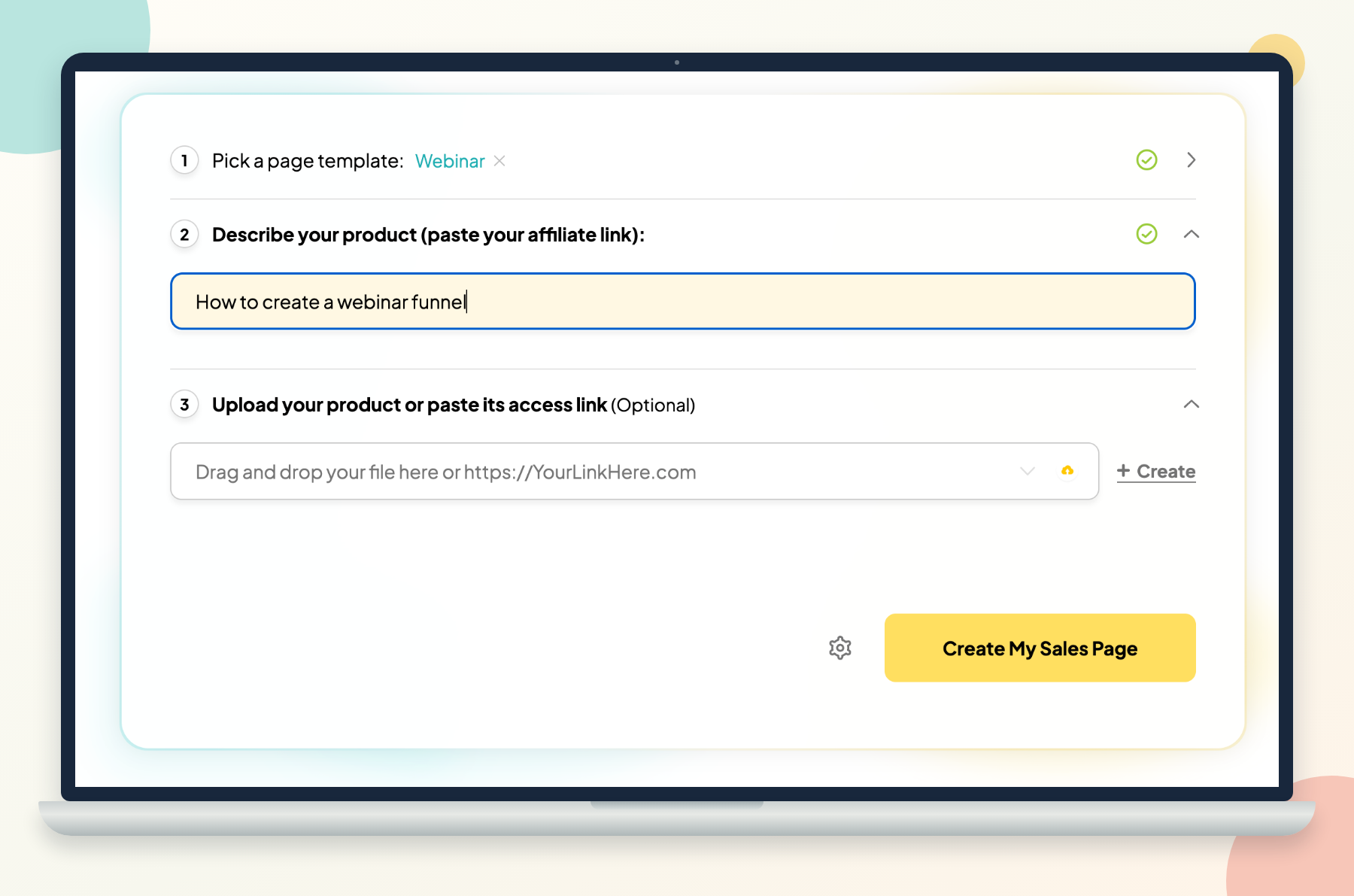
Under Describe your product, tell Pagewheel what your class is about and who it helps. If you already have a handout or workbook, you can upload it or add its access link. Then click Create My Sales Page.
Pagewheel creates a starting page. Edit the sections so the invitation sounds like you and clearly explains the class. In the website editor, use My Price to make it free or choose a price. Here’s how to change the price.
Still deciding what to teach? This guide can help you choose a useful digital product idea.
2. Tell Attendees When and How to Join
Once someone registers, tell them exactly what to do next. Put the date, time, time zone, and joining link on a thank-you page and in a confirmation email. Include a password or calendar link if they need one.
Why both places? Someone may close the thank-you page before saving the details. The email gives them another place to find the link when it’s time to join.
In Pagewheel: On your new page, click the section with the event date, time, and place. This opens the event details form.
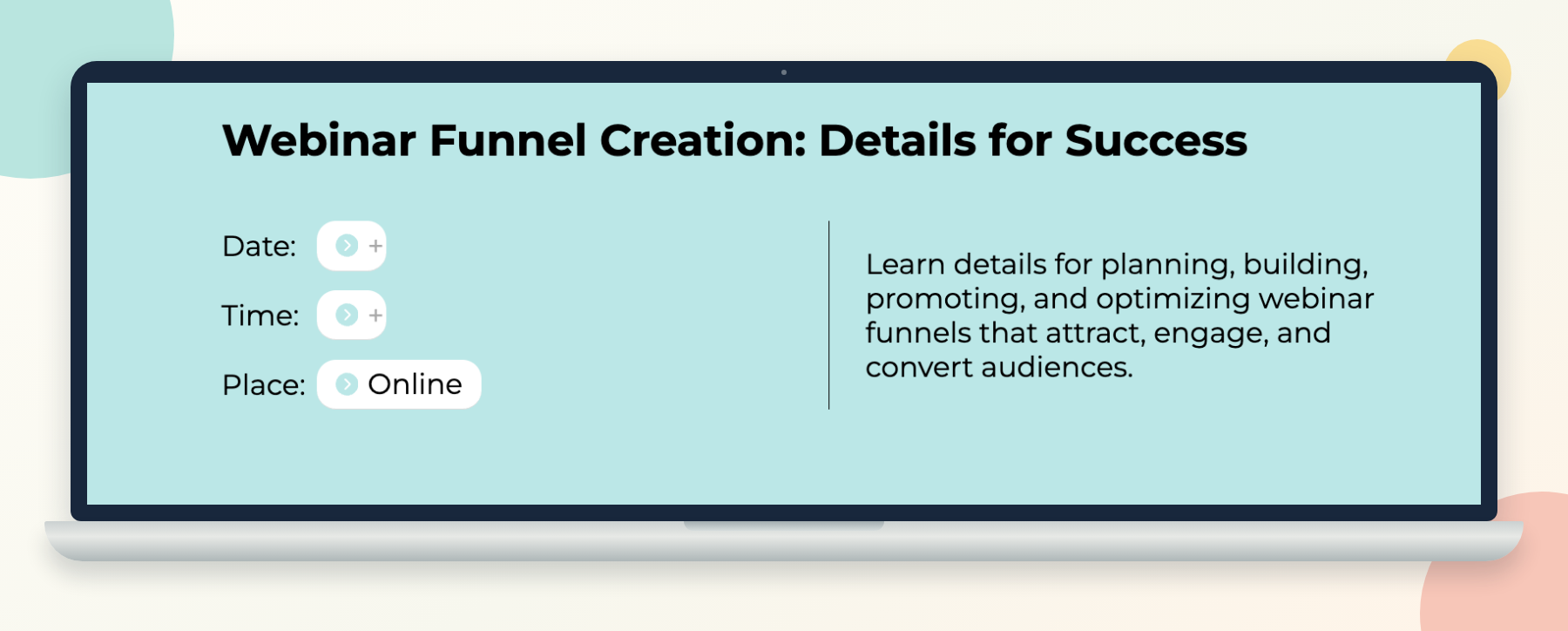
Enter the event name, date, time, and time zone. Under Event URL, paste the attendee joining link from Zoom or your meeting platform. You can also add a calendar link, Zoom password, or people limit if you need them.
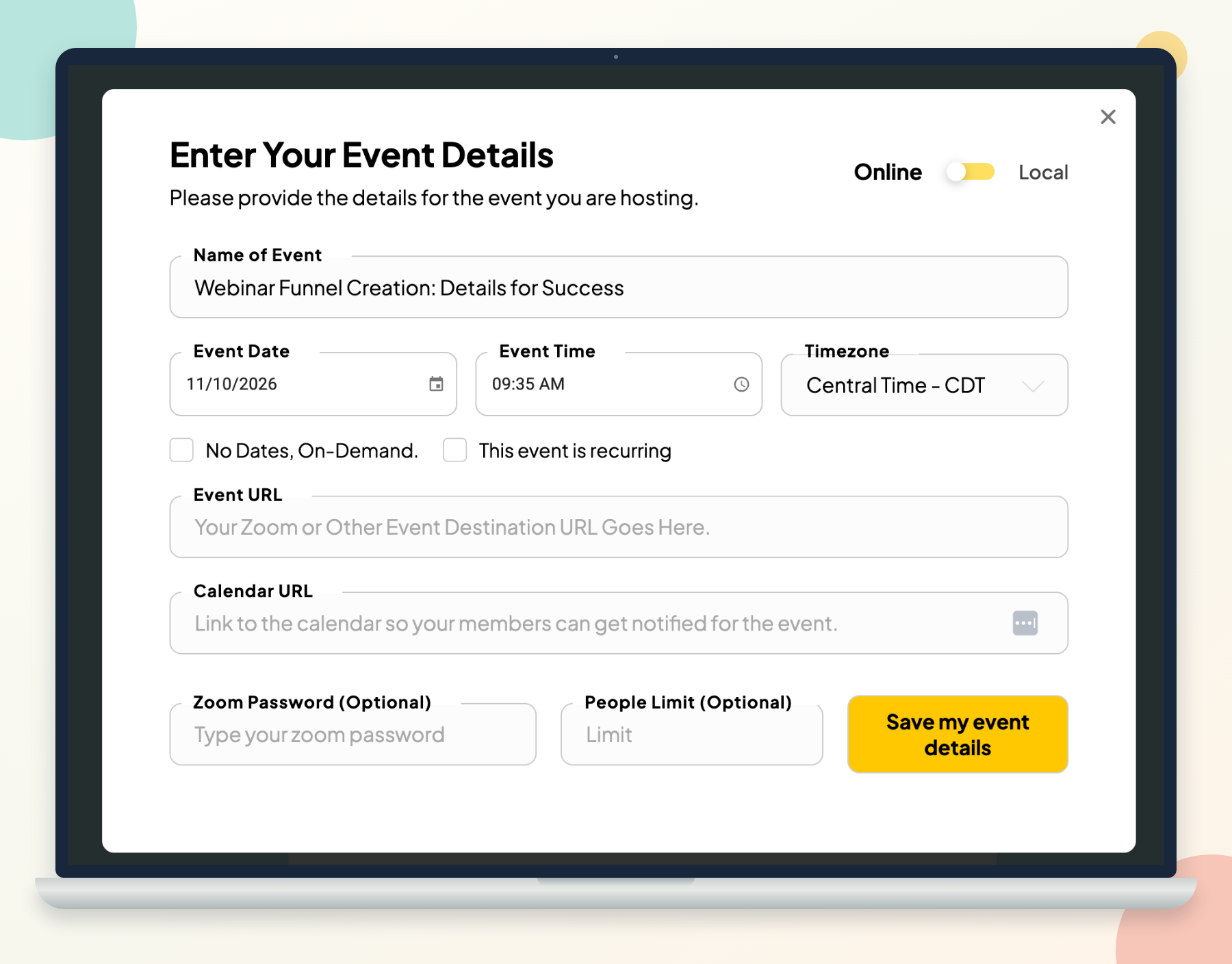
Click Save my event details. If anything changes later, click that section again to edit it.
Pagewheel includes the event details on the thank-you page and in the delivery email. To check the page, choose Delivery Page from the website editor’s page-type dropdown. Make sure any class materials are easy to find there, too.
From the Delivery Page, click next through the metadata screen to reach the Delivery Email editor. Check the details and the link back to the Delivery Page. You can edit the subject and text to sound like you.
3. Test the Sign-Up and Share Your Invitation
Before you invite people, go through the process as an attendee. Sign up with an email address you can access. Check the confirmation page and email, and make sure the joining link works. If the class is paid, check the payment process, too.
Once everything works, share the sign-up page with your email list, on your website, or wherever your audience already finds you. Send people to the registration page so they get the same instructions after signing up.
In Pagewheel: Publish the website and delivery email. Find the offer page under Your Links, then use it to test your sign-up and share the invitation.
4. Remind People Before the Class
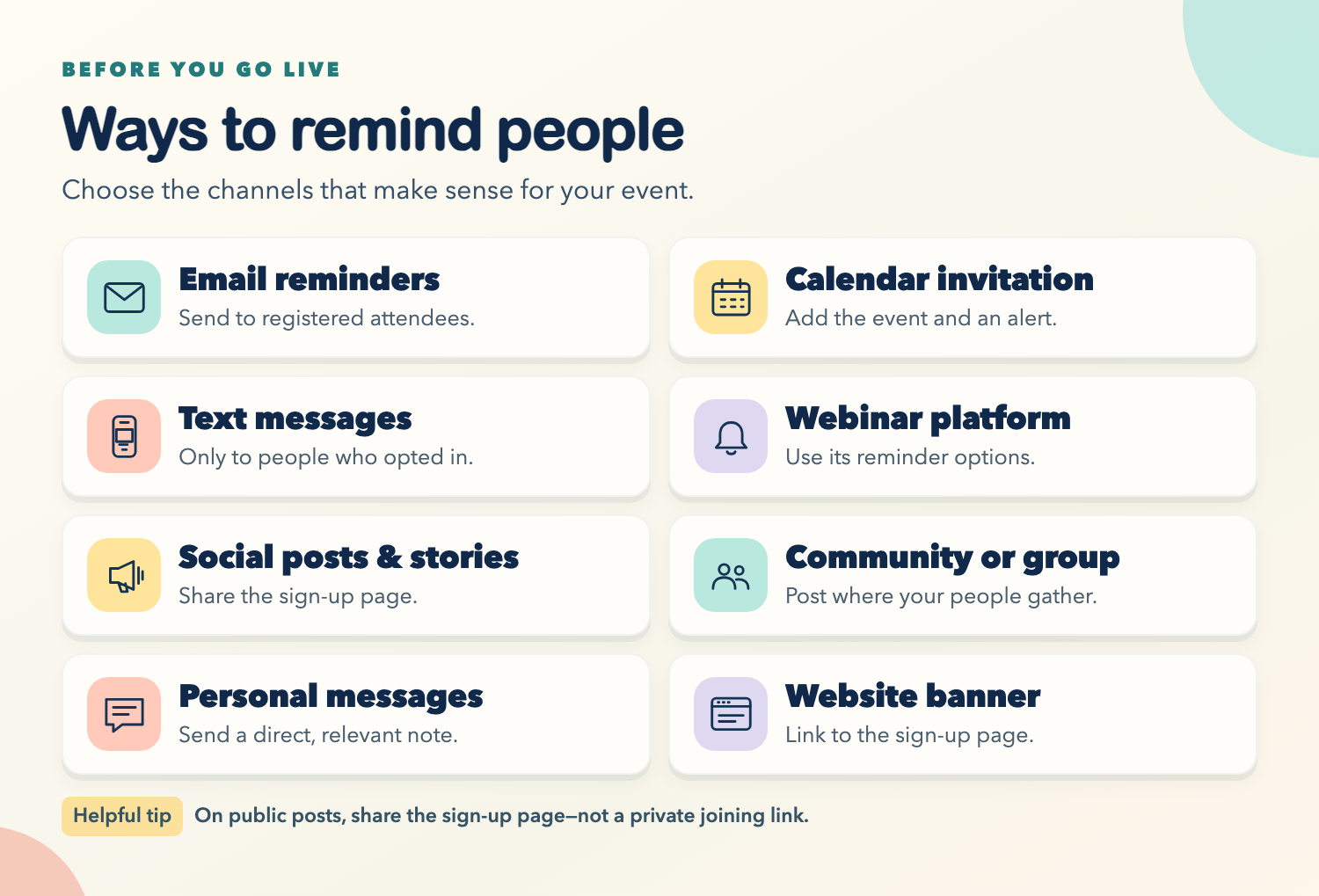
A confirmation helps someone save the details. A reminder brings those details back when the class is getting close.
Send one the day before and another shortly before you start. Include the date, time, time zone, and joining link so attendees don’t have to search for them. You can send reminders through your email service or webinar platform.
Keep the people who registered for this event together in your email service so you’re sending the reminder to the right group.
In Pagewheel: Pagewheel sends the initial delivery email. For extra reminders, move your sign-ups to your email service in one of two ways:
Download your list. Open Your List and click Download My List as a CSV. Import the file into your email service. This is a snapshot, so download and import it again as new people sign up. Here’s how to download your list.
Connect with Zapier. In Your List, click Set Up Zapier and connect Pagewheel to your email service. In the Pagewheel New Order trigger, choose lead for free sign-ups or sale for paid purchases. Connect the subscriber action in your email service, then test and publish your Zap. Here’s the step-by-step Zapier guide.
Zapier sends new sign-ups after it’s set up; import existing contacts separately. Your List and Zap may include people from other Pagewheel offers, so check that your reminder goes to this event’s registrants.
5. Teach the Class and Follow Up
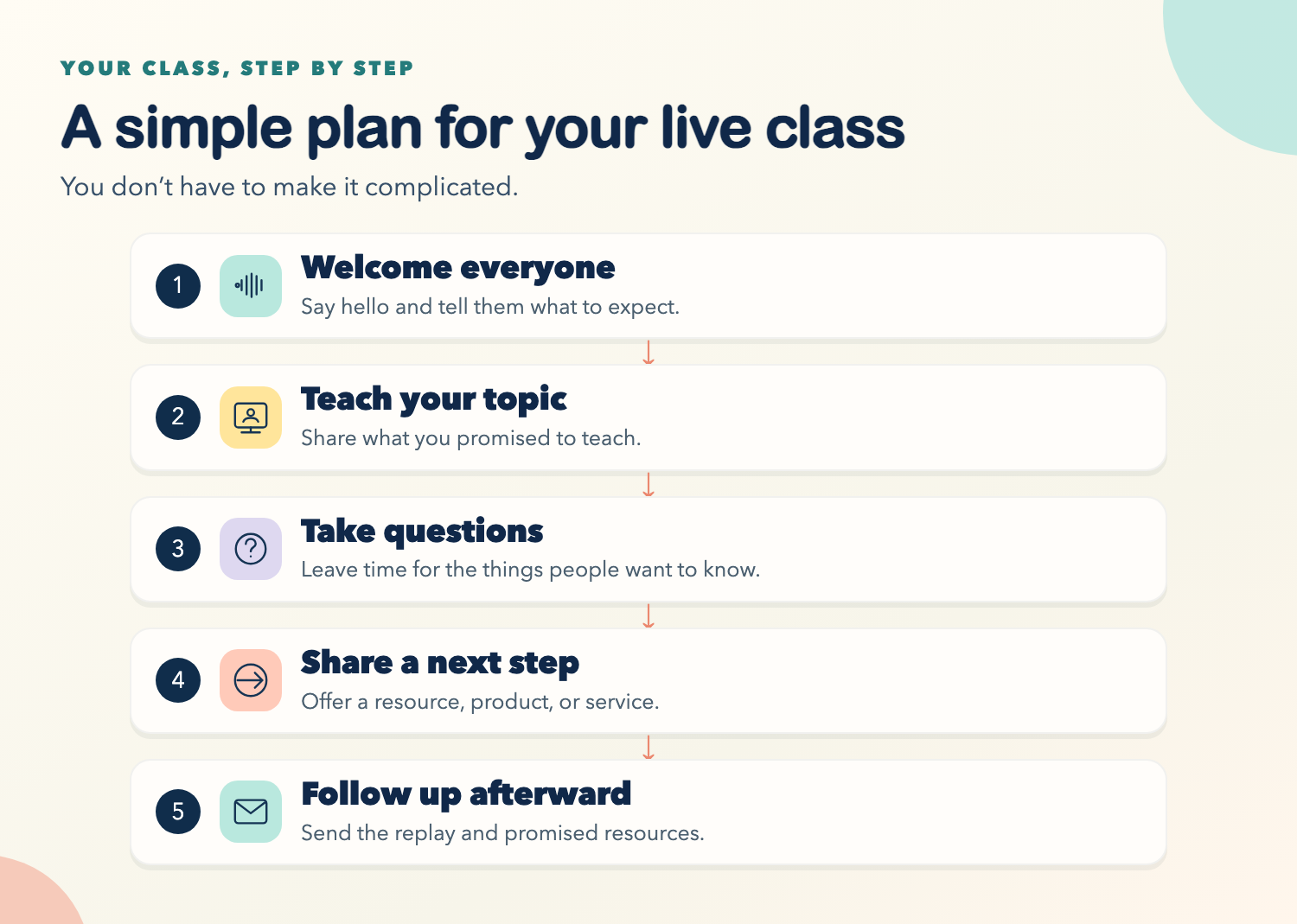
Teach your class, leave room for questions, and tell people about a related course, product, or service if you have one. Explain what it helps with and where they can learn more.
Afterward, email the people who signed up. Share the replay if you recorded the class, send any promised resources, and remind them about your offer. That also gives people who missed the live event a chance to watch.
In Pagewheel: Use the list you downloaded or connected to your email service in the previous step to send your follow-up. Pagewheel sends the initial delivery email; use your email service or webinar platform for later messages.
6. Make the Recording Available On Demand
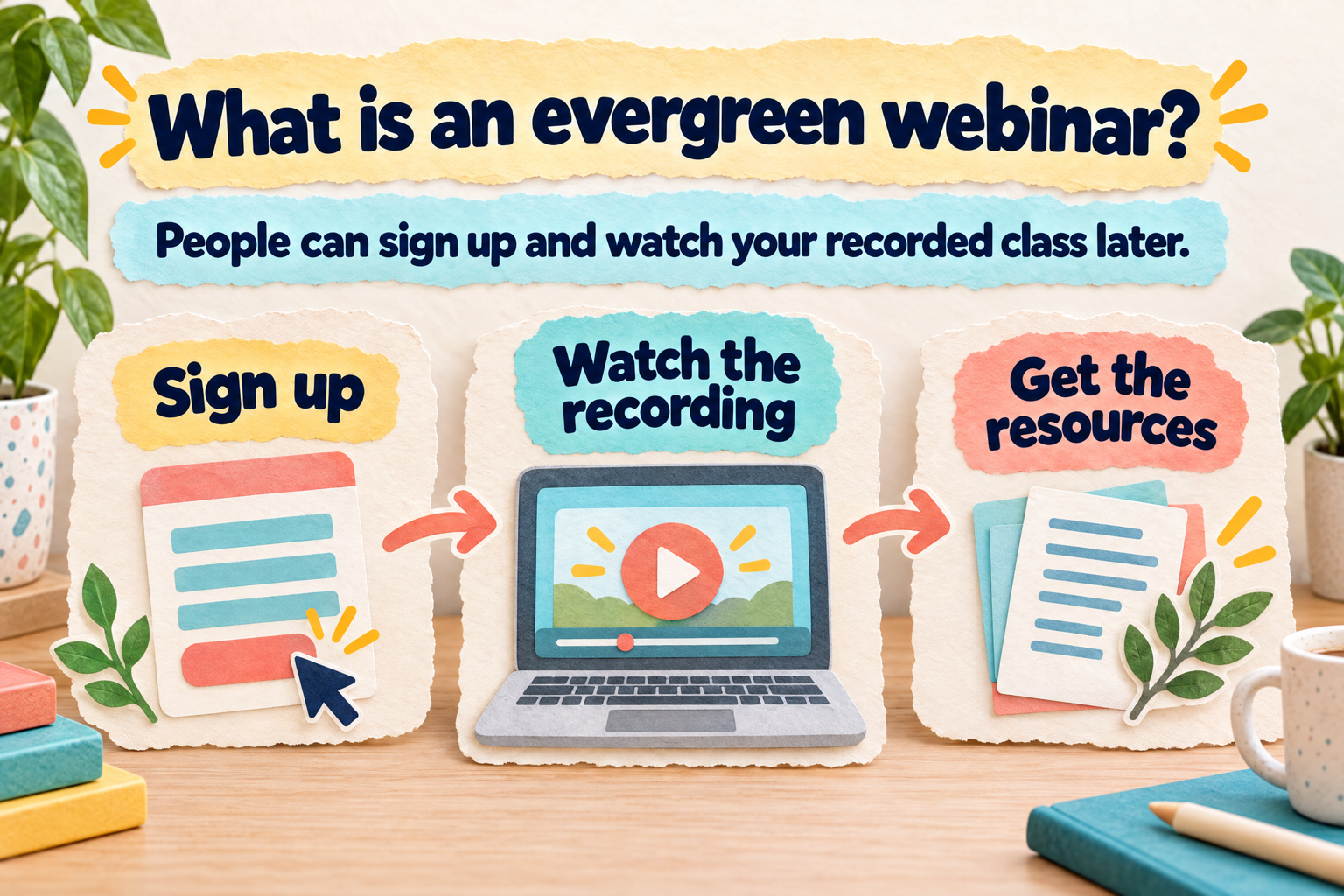
A recorded class can keep helping people after the live event. You may hear this called an evergreen webinar: people can sign up and watch the recording later.
Update the invitation and confirmation so they explain that the class is a recording. Replace the live joining instructions with a way to watch, and check that any handouts or links are still available.
In Pagewheel: Open your event page and click the event details section again. Select No Dates, On-Demand, then save your event details.
Add the recording to the Delivery Page. To embed a YouTube video, click a page section, choose +, and select Video or Image. Switch to Video, pick a layout, then click the placeholder and add your YouTube link. You can also add a text link to a recording hosted elsewhere.
Update the offer page and delivery email to describe the recording instead of the live class. Check the Delivery Page and email for old dates or joining links, then publish your changes. Here’s more on adding a workshop video to your Delivery Page.
Sign up once more to make sure you can find and play the recording.