


Pagewheel Basics

The Pagewheel Dashboard
Navigating the Pagewheel Dashboard

The Pagewheel dashboard is where all the magic happens. From here, you can create your own digital products, use our ready-made templates, access various copy packs, see sales metrics for published products, start customer email lists, and more.
Account Settings
How to Customize Your Profile Image

Add a personal touch when you customize your profile image to create a personal avatar in Pagewheel.
How To Update Your Personal Information
You may want to update your personal information on Pagewheel, for example, if your business name changes, and doing so takes a couple of steps. You can also change your first name, last name, email address, and password.
How to Update Your Payment Information

If you need to update your payment information on Pagewheel, the process is simple. For example, you may wish to switch from using a credit card to pay your subscription through Google Pay or Cash App Pay. All three options are available, and this guide will show you how.
Changing your Subscription Plan on Pagewheel
If you’d like to change your Pagewheel subscription plan, this guide will tell you how. Pagewheel has three subscription plans at various price points to choose from: Starter, Business, and Enterprise. You can easily upgrade (or downgrade) according to your unique needs.
How to Cancel Your Pagewheel Subscription

Should you choose to cancel your Pagewheel subscription at any point, but aren’t sure how to, this guide will help.
Downloading an Invoice on Pagewheel
Downloading Pagewheel invoices is simple, and this guide will show you how.
How to Connect Pagewheel to Your Email Service Provider (ESP)

We make it easy for you to connect Pagewheel to your email service provider, such as Mailchimp, ConvertKit, and more!
How to Become an Affiliate Partner

Share Pagewheel and make recurring commissions!
How to Get Help With Pagewheel

You can get help directly from Pagewheel and in several ways. You can send us a message, email us, or even connect with the Pagewheel Facebook community, a treasure trove of information filled with like-minded people who can help.
How to Find an Existing Digital Product

Pagewheel’s library and search features make finding an existing digital product easy. This is helpful when you have several products in your library and you need to search for a specific one to edit and change.
How to Duplicate a Digital Product on Pagewheel

Pagewheel makes duplicating a digital product so easy. After copying a product, you can easily rename it too. This guide shows you the process, step-by-step.
How to Find the Links to Your Digital Product & Website

It’s so easy to find the links to products (and their websites) directly from your dashboard!
How to Edit an Existing Product

Pagewheel’s simple user interface means editing an existing product on Pagewheel is quick and efficient.
How to Edit an Existing Website

If you need help editing an existing website for your products on Pagewheel, just follow these easy steps!
How to Share a Product

You can share a product to another user from your dashboard. If you’re a Pagewheel affiliate, when you share a product to someone in your audience, Pagewheel will automatically walk them through the sign-up process, populate their account with the product you shared, and give you credit for the new user!
How to Delete a Digital Product

Keep your product library tidy – learn how to delete a digital product in Pagewheel.
How to Edit the Delivery Email for an Existing Product

If you find out you need to change the delivery email for a product you have created in the past, stay relaxed, it’s easier than you think! There are different ways to do it, just follow these simple steps.
Where to Find Your Customer Contact Information

Pagewheel automatically collects customer contact information every time a product is downloaded.
You can export this customer contact list and upload it to your own email service provider.
How to Download Your Customer Contact Information
Pagewheel lets you download a list of your customer information. This can be done manually, or automatically using Zapier.
The Product Builder

Choose Your Product Type
How to Create a Product with the Page-by-Page Builder

Pagewheel allows you to create hundreds of different types of digital products in our page builder, and you can be sure we will have something specific to your unique needs.
How to Use Ready-Made Content in Pagewheel to Create Your Digital Product

We’ve got a huge library you can use to add ready-made content to create new digital products fast.
How to Upload a PDF to the Product Builder

You can upload a PDF in the Product Builder on Pagewheel. This allows you to combine your own PDFs with Pagewheel’s offerings or create a website for a PDF product you already have!
Brand Your Awesome Product
How to Brand Your Digital Product

Add your unique brand to each of your digital products in a simple process that allows you to start selling your offerings as soon as possible.
How to Change the Brand Colors of Your Digital Product

You can change the brand colors on any one of your digital products using Pagewheel’s Product Builder. When creating a new digital product, you would select the colors in the ‘Page-By-Page Product Builder’. An already published digital product can be changed too if you’d like to freshen things up a little.
How to Change the Text Color in Your Digital Product

You can change the text color of your digital product in Pagewheel’s product builder.
How to Choose and Change Fonts in Your Digital Product

With Pagewheel, you can easily choose or update the fonts used in your digital product.
Choose A Title & Cover For Your Awesome Product
How to Edit Your Digital Product Title

You can edit the title of your digital product in Pagewheel. Simply access the product editor to make the changes.
How to Choose a Cover Design

Pagewheel makes it simple to choose a cover design for your digital product. You can select from a wide variety of designs.
How to Choose a Product Mockup For Your Offer Page

Pagewheel makes it easy to choose a product mockup. This is used as part of the marketing materials for your product.
Building & Editing Your Product
Introduction to the page editor in the Product Builder

The Page Editor in Pagewheel is a tool that you will constantly use. It’s where you will build various digital products for your customers, and it’s a tool that offers so much.
How to Edit Text in a Digital Product

Should you wish to edit text in a digital product, you can use the Product Builder to do so. Changing your text is a simple process that you can carry out in a matter of minutes.
How to Save a Page from a Digital Product to Use Again in Another Digital Product

If you want to use a page from one product in another, you can easily do so with the save page tool.
How to Add a Saved Page to a Digital Product

If you want to add a save page to your digital product, it’s very simple! Just follow these steps.
How to Duplicate a Page in a Digital Product

You can easily duplicate a page in your digital product using Pagewheel’s editing tools.
How to Delete a Page from a Digital Product

If you need to delete a page from one of your digital products, the process isn’t difficult at all. You can do so from the page editor within Product Builder.
How to Rearrange Pages in a Digital Product

Should you wish to rearrange the order of the pages in your digital product, you can do so easily enough.
How to Add a DIY Page to a Digital Product

You can easily add a DIY page to any digital product while using Pagewheel. Let’s show you how.
How to Add Ready-Made Content to a Digital Product
Already have a PDF you’d like to promote with Pagewheel? Here’s how to get started with your ready-made content!
How to Add a PDF to a Digital Product

If you’d like to add a PDF to a digital product, either from already-made content or from a PDF you may have already uploaded, or even from our AI content tool, the process is simple.
How to Add an Image

You can easily add images to your digital products and websites.
How to Replace an Image

Updating your product or website? Replacing an image is quick and easy!
How to Crop an Image

There’s no need to prepare images before uploading to Pagewheel. Cropping an image on Pagewheel is easy.
How to Rotate an Image
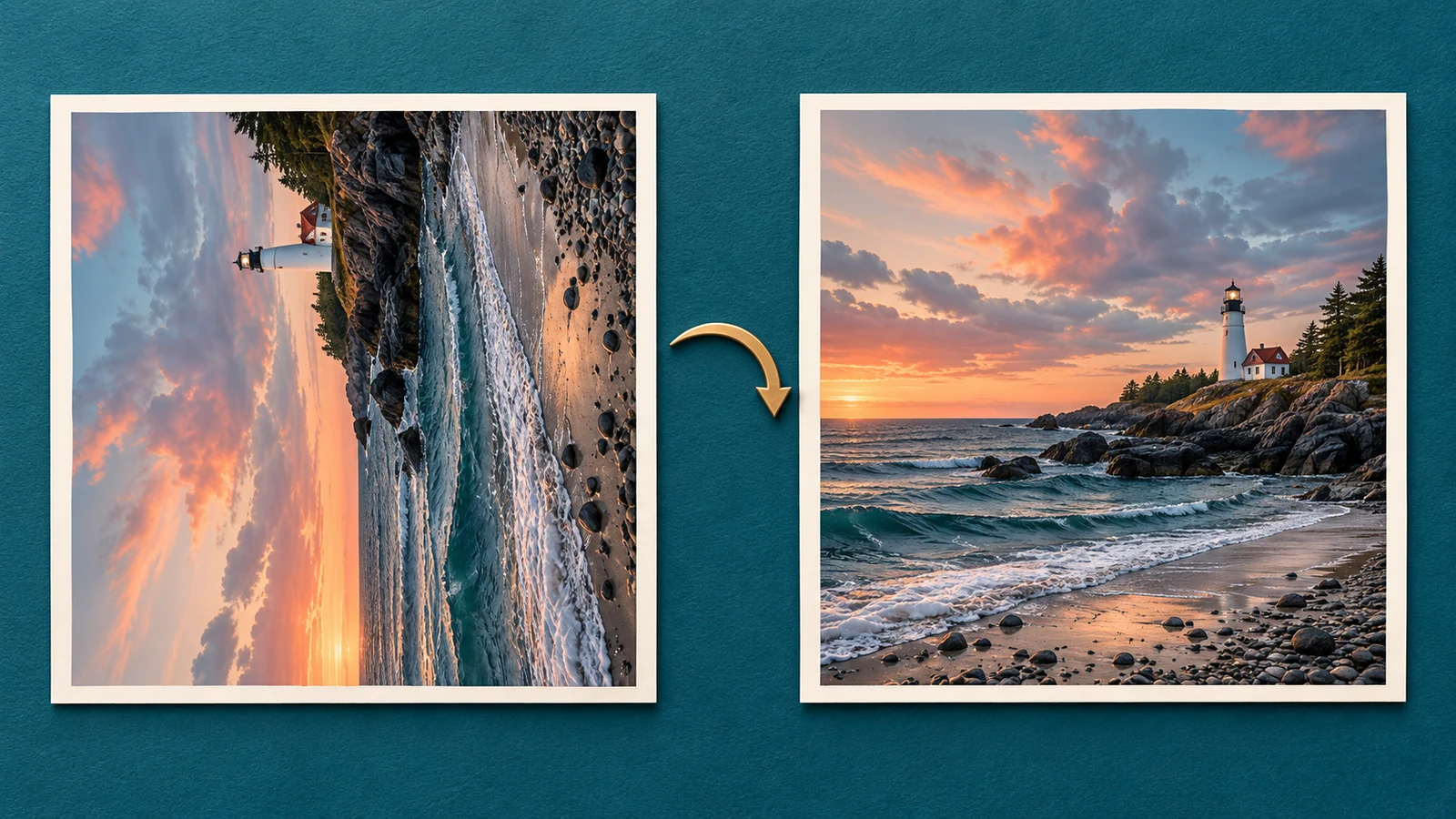
With Pagewheel, there’s no need to pre-edit your images before uploading. Rotating an Image on Pagewheel is simple.
How to Publish Your Digital Product
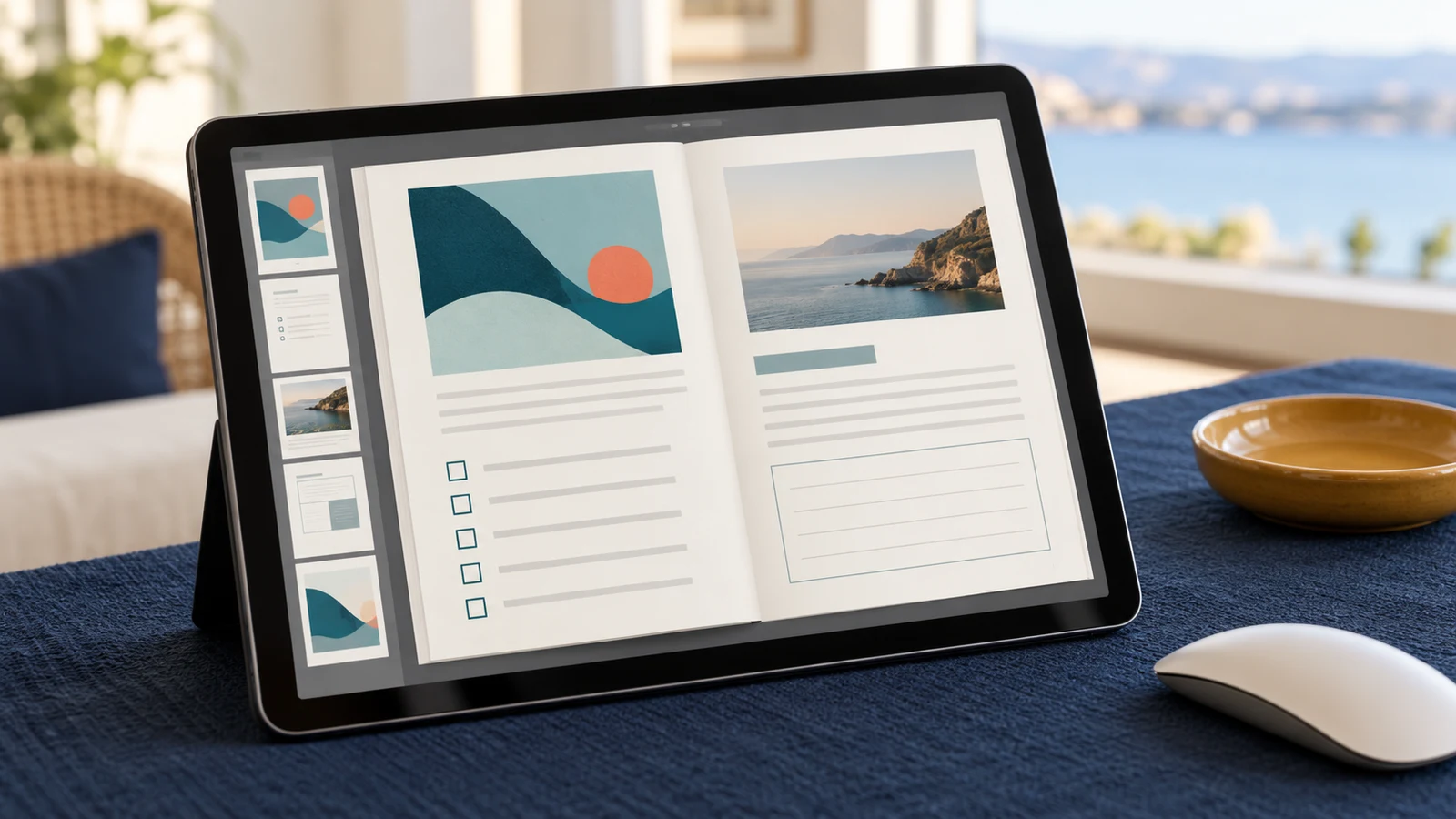
After publishing a digital product, you can download it as a PDF or simply share the link!
Offer & Delivery Pages
How to Create a Website For Your Digital Product

You’ve created a digital product – congratulations! That’s a great accomplishment. The next step is creating a website for it. Follow these easy steps to make it happen!
How to Edit Your Offer Page

Never struggle with a blank page, then edit your Offer Page to fit your specific needs!
How to Edit Your Offer & Delivery Page With the AI Assistant

Pagewheel creates websites for your digital products. These pages include text generated using Pagewheel’s advanced AI capabilities. It’s so easy to edit with or without the help of Pagewheel’s AI!
How to Change the Price of Your Digital Product (or Make It a Free Lead Magnet)

Whether you are offering a free optin or a paid offer, setting the price of your digital product on Pagewheel is simple and straightforward.
Introduction to the Section Editor Tab

Pagewheel automatically builds a website to promote each of your digital products. Parts of these websites can be changed using the section editor tool.
How to Add New Sections to Your Offer Page

Pagewheel creates a promotional website for each of your digital products, and you can easily add more sections to customize it to your needs!
How to Move Sections on Your Offer and Delivery Pages

Quickly customize your offer and delivery pages!
How to Hide the Phone Number Field on the Sign-Up Form

Pagewheel creates an “Offer Page” to market each of your digital products. By default, this webpage will request visitors’ phone numbers. You can disable this feature if you do not wish to collect phone numbers.
How to Hide a Section on Your Offer or Delivery Page

You can use the section editor tool to hide a section on your offer or delivery page without deleting it.
How to Delete Sections From Your Offer and Delivery Pages

Pagewheel automatically creates a website to promote each of your digital products. You can use the section editor tool to delete unwanted sections
All the Additional Section Options for Your Offer and Delivery Pages
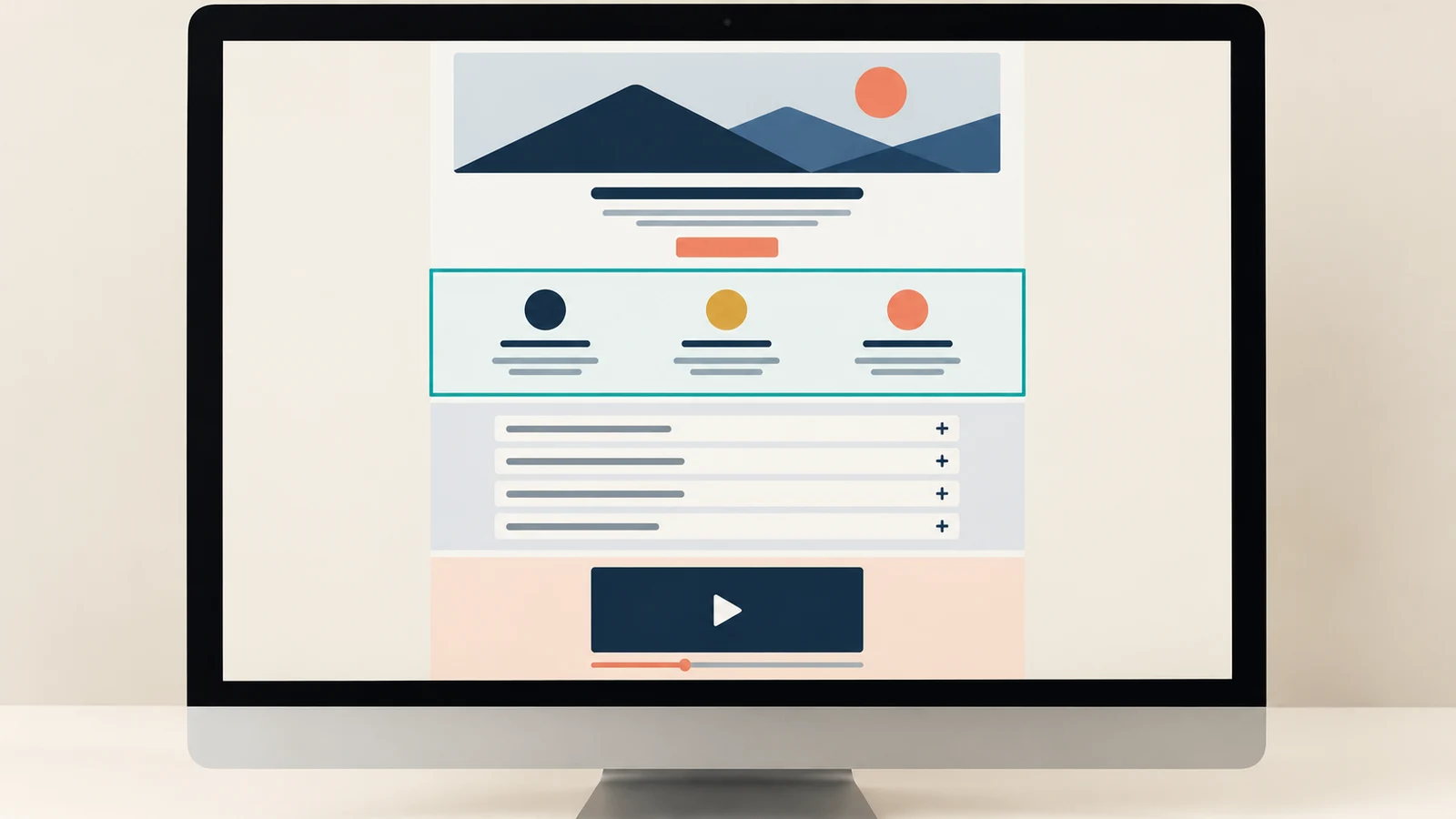
Pagewheel automatically creates offer and delivery pages to promote each of your digital products. You can further customize these web pages by adding more sections!
Powerful Things You Can Do With the Community Section on the Delivery Page

This page includes a “Community Section,” which lets you link directly to your product’s community. No community? No problem! There are LOTS of ways to leverage this section!
Use Your Delivery Page for a Course or Workshop

Deliver your course or workshop directly on the Delivery Page – here’s how!
Meta Data
Introduction to Meta Data

Pagewheel automatically creates strong metadata for your product for when search engines and social platforms display your content when a link is shared.
How to Edit Your Product’s Website Subdomain

Pagewheel automatically assigns a subdomain name for your product, but you have the option to change it to better match your branding.
How to Add Tracking Pixels

Pagewheel lets you add tracking pixels to a digital product. These can be used with Meta Pixel or Google Analytics pixels.
Delivery Email
How to Edit Your Delivery Email

Pagewheel automatically generates the content of the Delivery Email, and you have the option to customize it to better suit your needs!
Publish & Promote
Saving vs Publishing Your Product and Website

With Pagewheel, your work is automatically saved at every step of the product creation workflow, so you won’t lose any progress – but saved is NOT the same as published!
Pagewheel Copy Packs

How to Create the Best Copy Packs

You don’t need to be an AI expert to get great results!
Working With Different Languages in Copy Packs

Pagewheel’s Copy Packs lets you quickly create marketing materials in different languages.
Adding a Logo to Copy Packs

Add a professional touch to your Copy Packs by adding your logo!
Pick Your Content Pack
Coming Soon!
Selecting Your Options
Coming Soon!
Social Content
Coming Soon!
The Social Calendar Copy Pack
Coming Soon!
The Sales Conversation “Ladders” Copy Pack
Coming Soon!
The Ad Copy Copy Pack
Coming Soon!
The Social Conversation Starters Copy Pack
Coming Soon!
The Viral Hooks & Descriptions Copy Pack
Coming Soon!
The Facebook Post Mixer Copy Pack
Coming Soon!
The 2 Weeks of Conversations Copy Pack
Coming Soon!
The Post Per Platform Copy Pack
Coming Soon!
The Tweetable Posts Copy Pack
Coming Soon!
The 3 Pinterest Descriptions Copy Pack
Coming Soon!
Business Branding
Coming Soon!
The Two-Week Launch Plan Copy Pack
Coming Soon!
The Head & Heart Solutions Copy Pack
Coming Soon!
The Stories to Tell Copy Pack
Coming Soon!
The My Avatar Copy Pack
Coming Soon!
The Head & Heart Objections Copy Pack
Coming Soon!
The 5-Day Challenge Plan Copy Pack
Coming Soon!
Websites and Blogs
Coming Soon!
The Blog Post Ideas Copy Pack
Coming Soon!
The Viral Hooks & Descriptions Copy Pack
Coming Soon!
The Listicle Blog Post Copy Pack
Coming Soon!
The Tutorial Blog Post Copy Pack
Coming Soon!
The Content “Pizzaz” Makers Copy Pack
Coming Soon!
The Authority Blog Post Copy Pack
Coming Soon!
The Stories to Tell Copy Pack
Coming Soon!
The Informational Blog Post Copy Pack
Coming Soon!
The SEO Keywords & Strategy Copy Pack
Coming Soon!
The Recipe Blog Post Copy Pack
Coming Soon!
The Privacy & Data Use Policy Copy Pack
Coming Soon!
The Sales Page – Long Form Copy Pack
Coming Soon!
The Interview Questions Copy Pack
Coming Soon!
Email Marketing
Coming Soon!
The Email Subject Lines Copy Pack
Coming Soon!
The Newsletter Topic Ideas Copy Pack
Coming Soon!
The Nurture Email with a Checklist Copy Pack
Coming Soon!
The Welcome To My Newsletter Email Copy Pack
Coming Soon!
The Call-to-Action Email 2-Pack Copy Pack
Coming Soon!
The Happy Sales Email 2-Pack Copy Pack
Coming Soon!
The Inspire & Educate Email 2-Pack Copy Pack
Coming Soon!
The Call-to-Action Sales Email Copy Pack
Coming Soon!
The Nurture Email with a Guide Copy Pack
Coming Soon!
The Inspirational Sales Email Copy Pack
Coming Soon!
The Product Launch Email 5-Pack Copy Pack
Coming Soon!
The Sales Funnel 5-Emails Sequence Copy Pack
Coming Soon!
The Big Promise 5-Email Sequence Copy Pack
Coming Soon!
The Viral Hooks & Descriptions Copy Pack
Coming Soon!
Products & Programs
Coming Soon!
The Product Ideas Copy Pack
Coming Soon!
The 5-Day Challenge Plan Copy Pack
Coming Soon!
The 30-Second VSL Script Copy Pack
Coming Soon!
The Product Title & Description Mixer Copy Pack
Coming Soon!
The Ad Copy Copy PackThe Two-Week Launch Plan Copy Pack
Coming Soon!
Video Scripts
Coming Soon!
The Viral Hooks & Descriptions Copy Pack
Coming Soon!
The Solve & Sell Script Copy Pack
Coming Soon!
The Educate Your Audience Scripts Copy Pack
Coming Soon!
The 30-Second VSL Script Copy Pack
Coming Soon!
The Video Sales Letter Script Copy Pack
Coming Soon!
The Emotional Selling Video Scripts Copy Pack
Coming Soon!
The 5-Day Challenge Plan Copy Pack
Coming Soon!
Create the Copy Packs
Coming Soon!
Explore
Coming Soon!
Join the Community!

We want to support your journey every way we can! Join our great group of supportive, experienced people where you can get questions answered, learn from your peers and keep updated with new features, live events, and more!
Don’t have Pagewheel yet but want to learn more? Joining the group is a great way to see how other people like you are growing their audience with Pagewheel.
Become a Referral Partner – join our Affiliate Program!
Share Pagewheel with your audience, help them build their business and earn generous recurring commissions from our every month!
Get Pagewheel!
Don’t get left behind – get Pagewheel and build your audience FASTER!