

A simple landing page for consultants explains who you help, what you offer, and the next step a prospective client can take.
You know how to help your clients. Putting that into a page online is a different job.
Suddenly you’re choosing headlines, photos, and buttons. Then someone mentions a sales page or a funnel, and the simple thing you wanted to make starts sounding complicated.
I would start with a page that answers a few useful questions. Is this the problem I have? Can this consultant help me? What should I do next?
That’s the point of the layout. Each section helps the client understand the next one.
Pagewheel gives you editable page sections to work with. First, let’s decide what belongs in them.
What is a landing page—and how is it different from a sales page or funnel?
A landing page is a focused page someone reaches after following a link. For a consultant, its job might be explaining one service and inviting a prospective client to ask about working together.
A sales page explains a paid offer and helps someone decide whether to buy it. It’s one use of a landing page.
A funnel is the path around the page. A simple consulting path could look like this:
Referral or article → landing page → inquiry about your service.
The visitor arrives for a reason. The page explains the relevant help. The next action moves that conversation forward.
You can start with that small path instead of planning an entire website.
1. Put a clear headline at the top
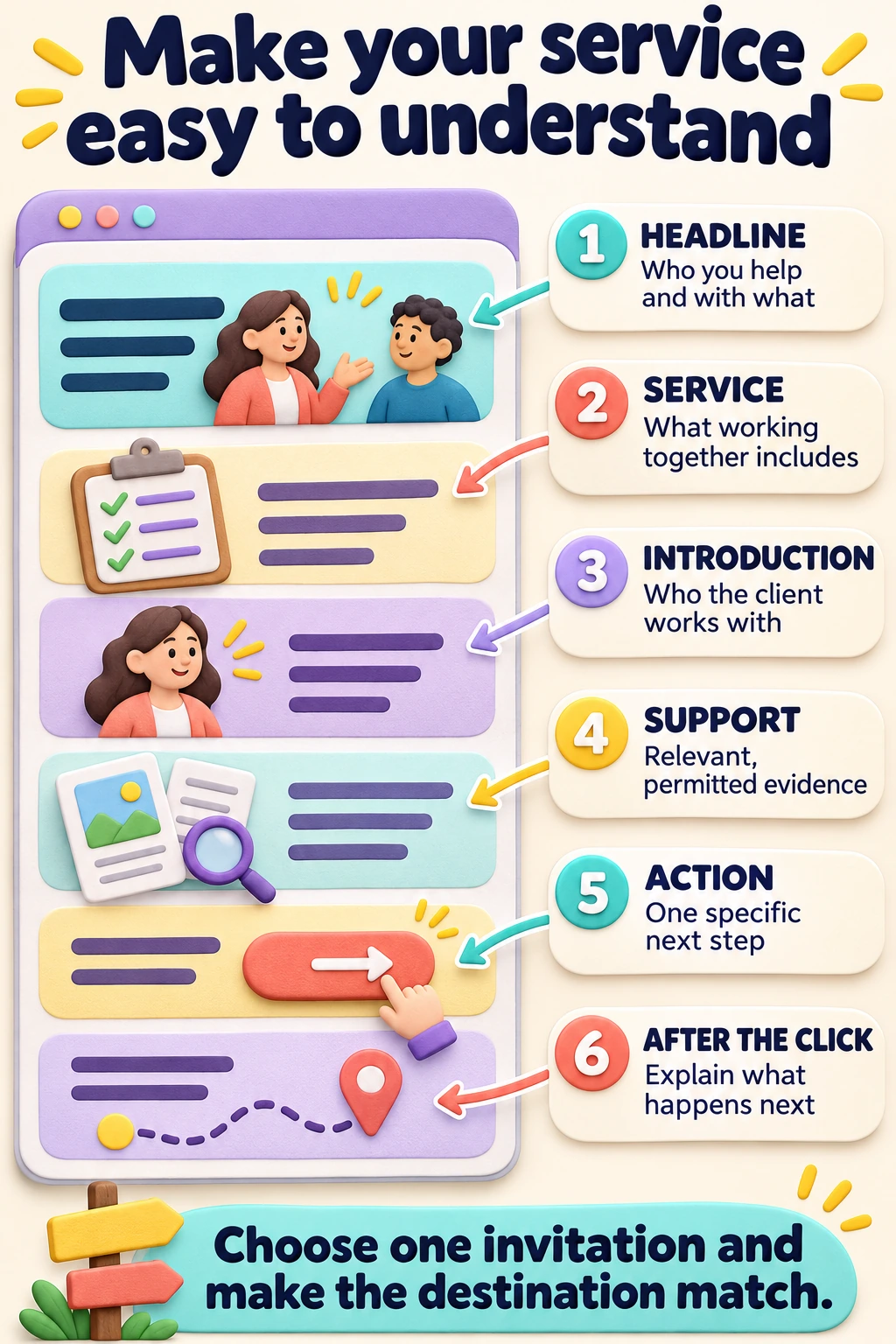
Your headline is the first explanation of what this page is about.
Name the help you offer and who it’s for. Use words your client would recognize.
Illustrative sample wording:
Headline: Onboarding help for growing service teams
Supporting sentence: Understand where new hires receive mixed instructions and what to review before changing your process.
The headline identifies the service. The sentence underneath explains why someone might need it.
That gives a visitor more to work with than “Strategic solutions for ambitious businesses.”
Why it belongs here: A person following a referral should quickly recognize the help they came to find.
Keep the headline and supporting sentence together. Before adding anything else, read them aloud. Can someone outside your profession understand what you help with?
Pagewheel will write your entire landing page after you tell it your consulting services. If you want to edit the headline (or any other area), you can click on the headline and edit it manually or refresh the section for a new headline written by AI (for more information: Offer Page editor).
2. Explain what working with you includes
Put a short service explanation below the opening.
“Consulting” describes the kind of business. It doesn’t tell a client what you will do together.
Name the work. You might review a process, help compare options, develop a plan, or provide implementation support. Use the work your service actually includes.
A few short points can make that easy to scan:
- The problem or decision you help with.
- What you do during the engagement.
- What the client receives or prepares afterward.
Why it belongs here: The visitor needs to connect their problem to your help before deciding to contact you.
If your service is advice rather than implementation, make that distinction in the description. A client should understand whether you’re helping them choose a change or carrying it out.
I would keep this section focused on the service this page introduces. Your other services can have their own explanations elsewhere.
3. Introduce yourself with a short bio and photo
Place your introduction beside the service explanation or just below it.
Tell the visitor who they would work with. Add the experience that connects you to this particular service.
A useful bio answers, “Why does this person understand the work I need help with?”
Choose a relevant detail rather than your entire career history. Then use a clear photo of yourself if you have one available.
Why it belongs here: Consulting involves working with a person. Your introduction helps the visitor understand who that person is.
4. Show something that supports your expertise
Put supporting information after the visitor understands the service.
That might be a relevant credential, a piece of public work, a permitted client quote, or a short explanation of how you approach the problem.
Choose something that helps the client assess this service.
Why it belongs here: The visitor has understood your offer. Now they want a reason to trust your explanation.
I would rather see one relevant detail than a row of unexplained logos.
If you’re starting without testimonials, explain your approach or share work you are allowed to show. A useful example of your thinking can help someone understand how you work.
Keep client information confidential and get permission for material you share. Endorsements should be accurate, with any relevant connection disclosed; the FTC’s endorsement guidance explains the U.S. requirements.
5. Give the client a clear next action
Make the next step visible near the opening. You can repeat the same action after the service details when that helps someone find it.
A call to action, or CTA, is simply the instruction telling the visitor what to do next.
Your next step could be a purchase, a conversation, or a useful resource. Choose it around what this client needs to decide next.
Here are six options for a consultant’s page:
| Example CTA | Use it when… | The next click should lead to… |
| Buy a consulting package | The service has a defined scope and price, and the client can purchase it directly. | The details and payment step for that package. |
| Book a discovery call | A conversation helps both sides decide whether the service fits. | Your booking page with the call’s purpose and available times. |
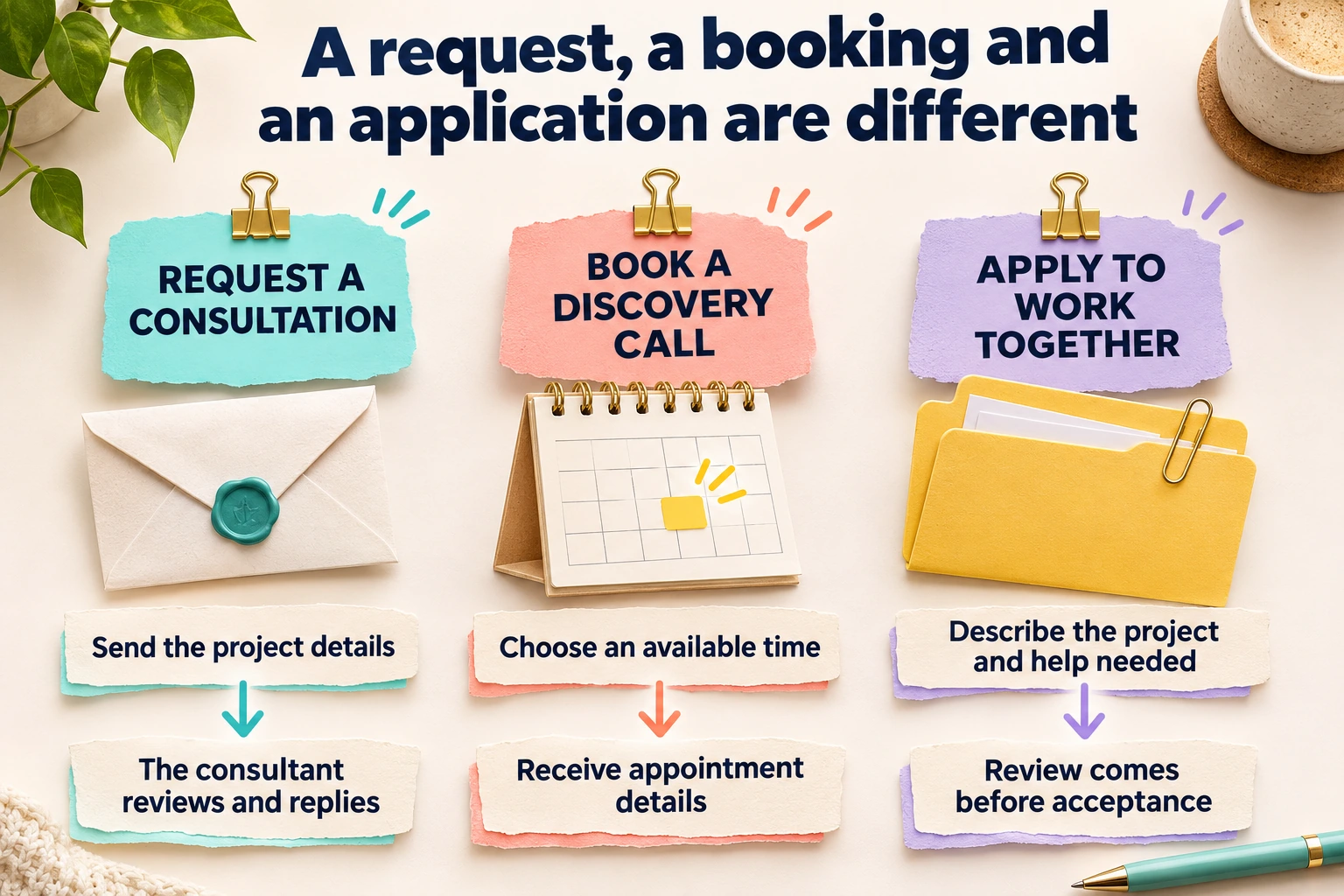
| Request a consultation | You need to understand the project before offering a conversation. | A short inquiry form or another stated way to send the request. |
| Get the assessment guide | A resource helps the visitor prepare or understand the problem. | The guide itself or a clearly explained request step. |
| Take the assessment | A questionnaire helps the visitor reflect on their situation. | The assessment, with instructions about the answers or feedback they will receive. |
| Apply to work together | You review suitability before accepting a client or engagement. | An application that explains what information you need and how review works. |
Choose one as the page’s main action. You can name the specific package or guide in the label so the destination is even clearer.
Why it belongs here: Understanding the service is only part of the decision. The client also needs to know how to continue.
Someone ready to purchase needs a different next step from someone still trying to understand the problem. Match the invitation to that decision.
You are giving them a reason to take the step, not just a button to press.
6. Explain what happens after that action
Put a short explanation beside the button or link. Tell the client what they will do, what comes afterward, and how that helps them move forward.
Why it belongs here: A client can decide more comfortably when they know what they are agreeing to do.
I would write this sentence at the same time as the button label.
Here are examples you can adapt to your process:
- Buy a consulting package: “Review the package details and complete payment. Your confirmation will explain how to arrange the first session.”
- Book a discovery call: “Choose a time to discuss your project and whether this service is a fit. After booking, you’ll receive the appointment details.”
- Request a consultation: “Tell me what you need help with. I’ll review your request and reply about the next step.”
- Get the assessment guide: “Open the guide and use its questions to prepare for a conversation about your project.”
- Take the assessment: “Answer the questions about your current process, then review your responses to identify what you want to discuss.”
- Apply to work together: “Describe your project and the help you’re seeking. I’ll review the application and contact you with the next step.”
Match the wording to what you actually provide. For a booking, include the date, time zone, and joining instructions. A request or application isn’t a confirmed appointment.
Add a visible contact option for someone who has trouble using the main route.
Put those sections together in Pagewheel
You don’t have to know how to build a landing page. That’s the point of using Pagewheel.
AI gives you a page to start with. Then you make it sound like you and fit the service you offer.
Briefly describe your consulting service
Sign into Pagewheel and answer the question about what you’re selling.
Keep it high-level: who you help and what your consulting service does. A short description is enough to start. You can add the details in the editor.
Let AI write the page
Have AI create your page. The headlines and sections are already laid out for you, so you’re reviewing a starting page instead of staring at a blank one.
Use the checklist above to see what you want to keep, clarify, or change.
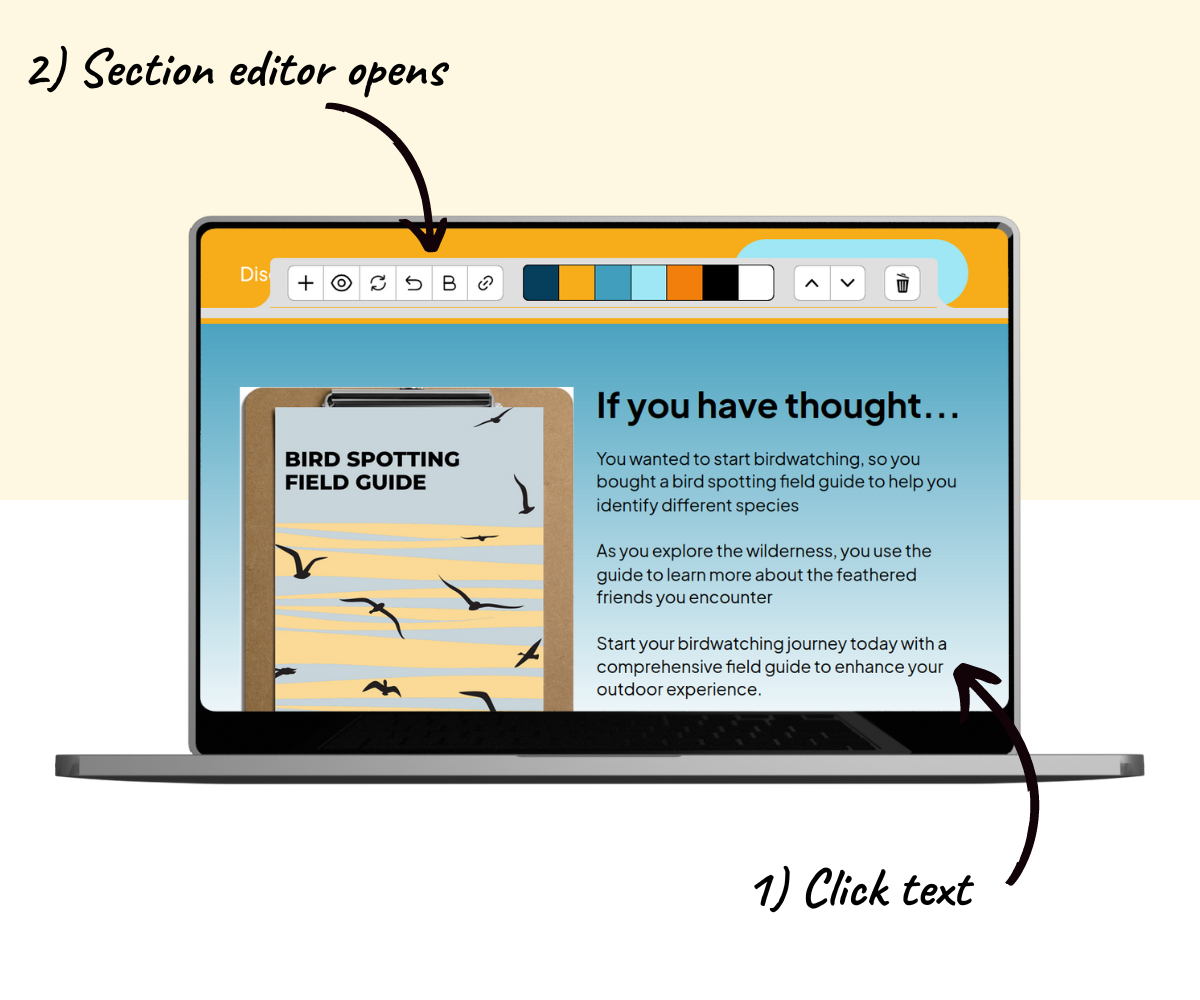
Click to edit
Want a different headline or a clearer service description? Click that section and edit the text.
This is where you add the specifics about your work and make the page your own.
Add or move a section
To add something, such as a video, click the section just above where you want it. Click the + button and choose the type of section to add.
Want your About Me section closer to the top? Click it and use the up and down arrows to move it. The section editor gives you those controls.
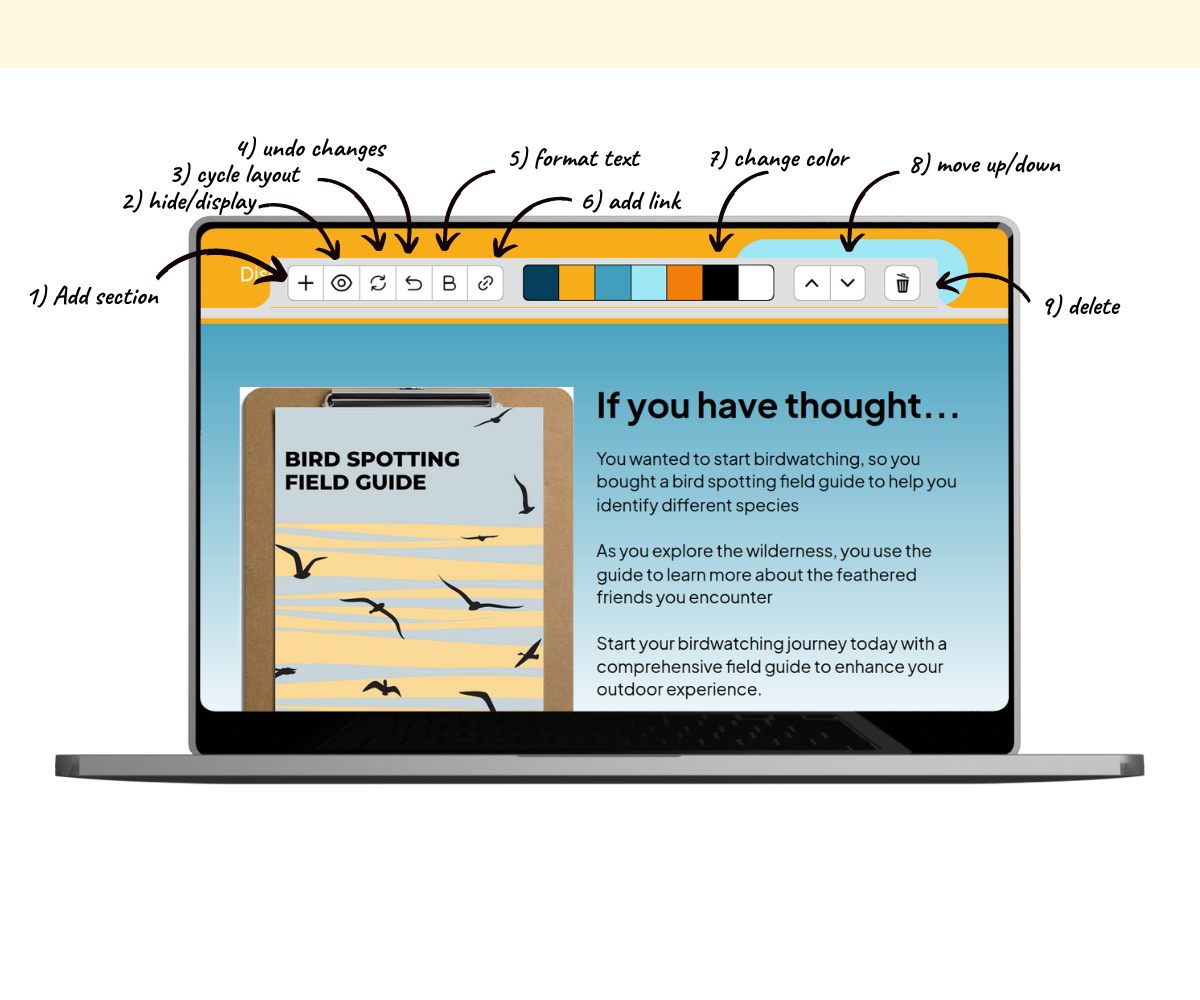
Explain the next step on the connected page and email
Your landing page is already connected to a thank-you page and a delivery email. When someone completes the page’s sign-up or purchase, those connected pieces carry the next step forward.
Use them to deliver a guide, provide booking instructions, or explain what the client should send you next. Match those instructions to the action you chose.
If your button sends people directly to an outside booking page or form, check that service’s setup to make sure clients get the confirmation and instructions they need.
Then publish your changes so the updated page and email are ready to use.
Pagewheel puts the starting page and connected delivery pieces together. You make the client’s next step clear.
Your consultant landing-page checklist
Use this to decide whether the page is ready for a prospective client to read.
| Page element | What the client should understand |
| Headline and supporting sentence | Who you help and which problem this page addresses. |
| Service explanation | What working with you includes. |
| Introduction | Who they would work with and your relevant background. |
| Supporting information | A credible reason to consider your help. |
| Main action | What they can do next and why it relates to their problem. |
| Next-step explanation | What happens after the click or inquiry. |
| Published-page check | The action works as described on the page. |
Questions about landing pages for consultants
Do I need a different page for every service?
Use a separate page when the service answers a different client problem or asks for a different next step. Related services can share a page when one clear explanation covers them.
Do I need testimonials before making the page?
You can start with relevant experience, permitted work, or a clear description of your approach. Add accurate client feedback when you have it and can share it.
Does my page need to sell the service immediately?
The next step can be an inquiry rather than a purchase. Explain the service and the conversation you’re inviting. Let the page match how you work with clients.
Write your headline and next-step explanation first. Then arrange the sections that help the client connect the two. Explore Pagewheel.