

An author landing page gives readers one place to learn about you and your book, sign up for updates, and find out where to buy.
Social media can help someone discover your book. But a post moves down the feed, and you still need somewhere to send the person who wants to know more.
That is what I would use an author page for: a home base you can link to from your social profiles, emails, and anywhere else you talk about your work.
You do not need a finished book or a complicated website to get started. For many authors, one useful page can do the introductory work of a larger site. You can add more later if you need it.
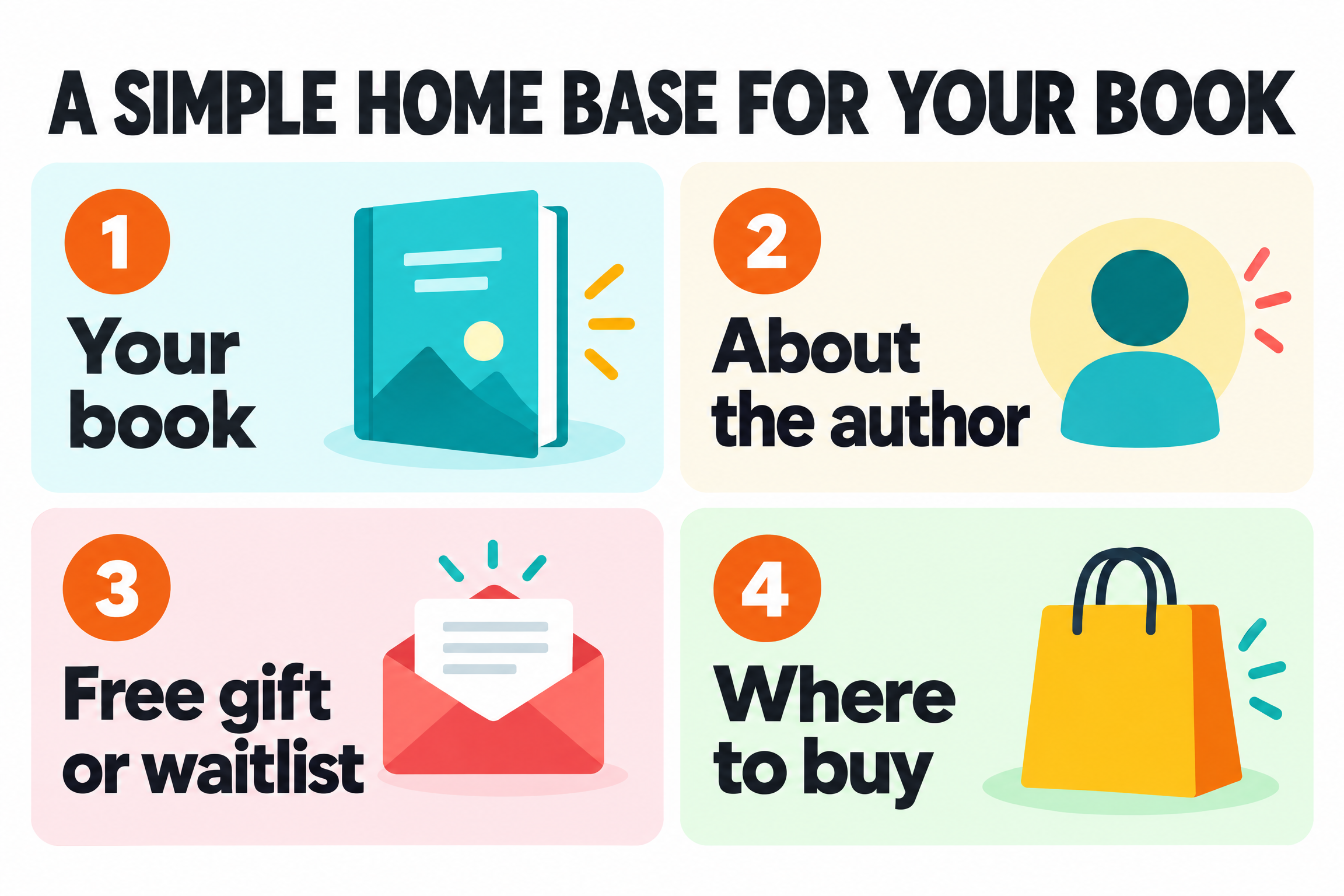
1. Introduce your book, even if it is not finished
Near the top of the page, tell visitors what you are writing and who might enjoy it. Give them enough information to recognize whether it is for them.
For nonfiction, explain the subject and what the book helps readers learn or do. For fiction, introduce the kind of story and its premise without giving away the ending. For a children’s book, tell parents or caregivers what kind of reading experience to expect.
Add the title and cover when they are ready. If you are still writing, a brief description of the book in progress is enough to start. You can add a release date later when you have one to share.
In Pagewheel: Describe your book and what you want your page to do. Let AI create a starting page, then click the opening section to edit its words. Click an image to replace it with your own cover or another image you have permission to use.
2. Tell readers who you are
A few sentences about you help readers connect the book with the person who wrote it. Include your name, a little about what you write, and your connection to the subject or story. A photo is useful if you have one you want to share.
You can also include a contact email or a link to the social account where readers can find you. You do not need a long biography to make the page useful.
In Pagewheel: Click an existing section to edit it. To add an author introduction beneath a section, select that section and use the + in its toolbar to add another one.
3. Give readers a reason to stay connected
Someone may be interested in your book before it is available. Give them a way to hear from you again, or offer a free resource that belongs with the book.
One option is a waitlist: a list of people who want to hear when your book is ready. Tell them what they are signing up to receive, then share updates when you have news.
In Pagewheel: Describe your book and ask for a page inviting readers to join your waitlist. Once AI creates a starting page, edit it to explain what readers will receive and give them a place to sign up.
You can also offer a free resource, often called a lead magnet: something useful a reader receives when they sign up. It could be:
- A sample chapter or short story for readers of fiction.
- A checklist, guide, or printable related to a nonfiction book.
- A discussion guide for a book club.
- An activity or resource that helps families use a children’s book.
For my first book, 101 Kids Activities That Are the Bestest, Funnest Ever!, we offered a six-month play guide as a preorder gift. The book gave families 101 activities; the guide helped them plan how to use them.
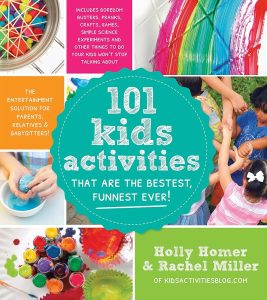
Your gift does not have to be that big. I would choose something that gives the same reader one more useful way to enjoy or use the book.
In Pagewheel: You can create a short resource or upload a finished PDF, then use it in your offer. Review the sign-up, thank-you page, and delivery email so readers know what they will get and where to find it. If you plan to send book news too, say that clearly when people sign up.
4. Show people where to buy when the book is available
Once your book is available, give readers a clear way to buy it. You can sell a physical copy directly from your page, link to a retailer, or offer both options.
In Pagewheel: Set up your book as a paid product and choose Stripe or Digistore24 for checkout. Pagewheel can collect the buyer’s full delivery address, so you can ship the book yourself. Let buyers know about any shipping charge and expected delivery time.
You can also add links to retailers that carry your book. Label each link with the store’s name so readers know where it goes.
5. Update the page as your book moves forward
Your page does not have to be finished once and left alone. Start with what you know now, then change it as the book progresses.
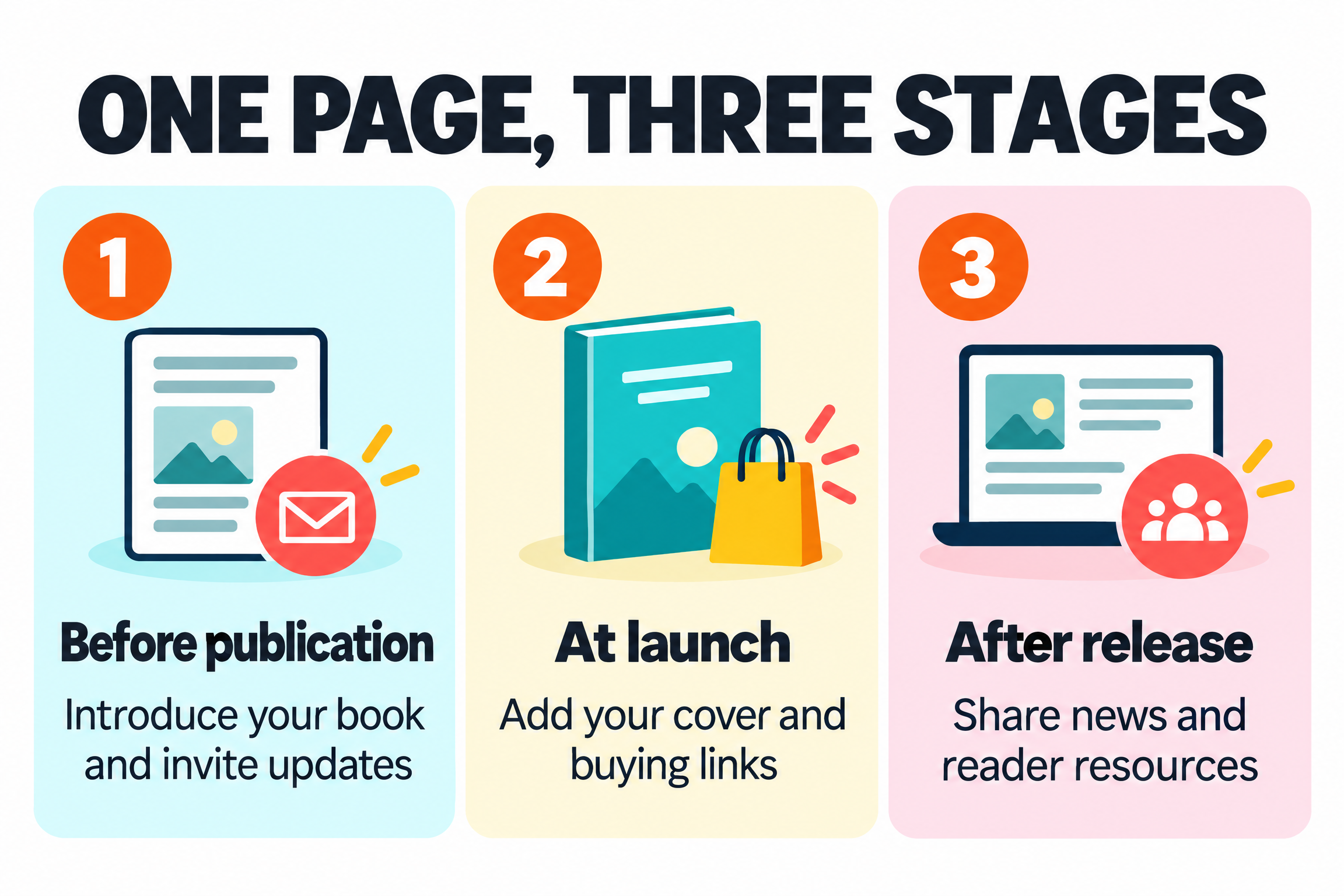
- Before publication: Introduce yourself and the book. Offer a sample or invite readers to sign up for news.
- At launch: Add the finished cover, release information, and working preorder or purchase links. Share any event or announcement readers need to know about.
- After release: Keep buying links current. Add events, reader resources, and reviews or endorsements you have permission to share.
In Pagewheel: Return to your page and click the section you want to update. Add another section with the toolbar’s + when you need more room. Publish or republish the website to make your changes live.
6. Share your home base
Put the page link in your social-media bio, your email signature, and the places where you talk about the book. When a post or interview makes someone curious, the link gives them somewhere to go next.
In Pagewheel: After publishing, look in Your Links for your available page links. Open the published page on your phone and test the links and sign-up yourself. Check the thank-you page and delivery email too, if you are offering a free resource.
Start with the information you have and one useful next step for readers. You can make the page more complete as your book takes shape.
For more ways to share your book, see these book promotion ideas.